


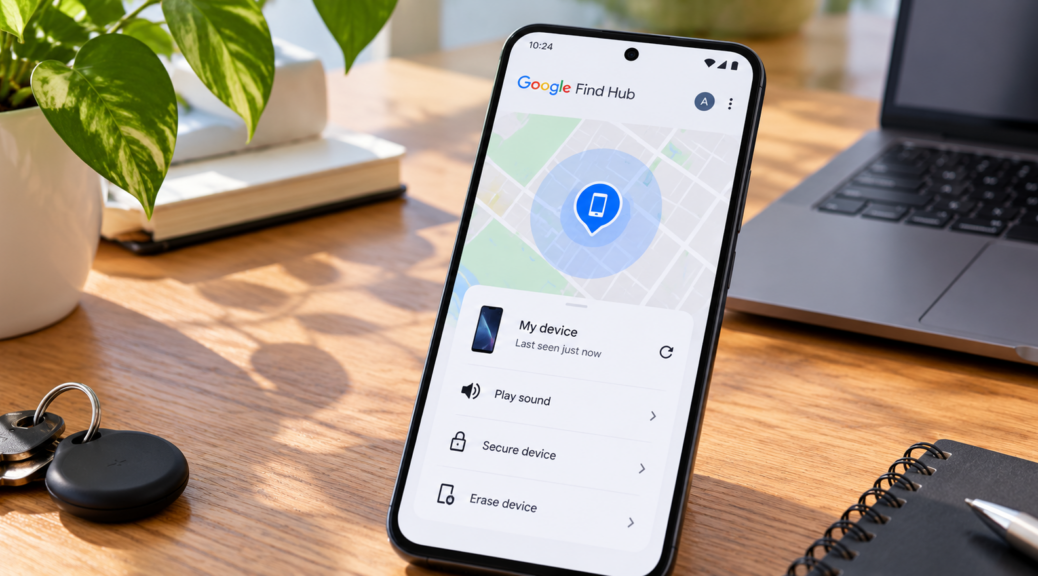
How to Set Up Find Hub Before You Lose Your Phone
Losing your phone can turn an ordinary day into a race against time. Your device may hold photos, emails, social media accounts, banking apps, saved passwords, and other […]
Losing your phone can turn an ordinary day into a race against time. Your device may hold photos, emails, social media accounts, banking apps, saved passwords, and other personal information. That is exactly why Google Find Hub should be configured before your phone ever goes missing.
On Android, Find Hub can help you find a lost phone, secure it remotely, make it ring, and, in more serious situations, erase its data. Google says that several conditions need to be in place for these features to work properly, including having the right Google Account connected and Find Hub enabled.
The best time to prepare for a lost phone is not after it disappears. It is while the device is still in your hands.
In short: make sure Find Hub is enabled, confirm that your Google Account is connected, set up a secure screen lock, enable offline finding, and review Android’s theft protection features. Sensitive apps should also have an additional layer of protection.
What Is Google Find Hub and Why Should You Set It Up in Advance?
Google Find Hub is Android’s system for locating devices associated with your Google Account.
Depending on the device and its current status, Find Hub can help you locate it on a map, make it ring, lock it, secure your information, or erase data remotely.
The important detail is that several of these protections depend on settings that should already be configured before you lose your phone.
According to Google, Find Hub needs access to the correct Google Account and relevant device settings. Location, screen-lock protection, network connectivity, and offline finding can also affect what Find Hub is able to do.
Google provides a step-by-step guide for checking these settings before anything happens: Be ready to find a lost Android device — Google Android Help.
How to Set Up Find Hub on Android
Start by opening your phone’s Settings and searching for “Find Hub.” Depending on your Android version and phone manufacturer, the exact menu names may vary.
Then complete this checklist:
- Confirm your Google Account. Make sure the Google Account you regularly use is signed in on the device.
- Turn on Find Hub. Check that the option allowing the device to be located is enabled.
- Set a PIN, password, or pattern. A secure screen lock protects the device and is also important for some offline-finding features.
- Check Location settings. Make sure Android location services are configured correctly.
- Enable offline finding. Review how Find Hub can search for the phone even when it is not currently connected.
- Test Find Hub. Sign in from another device and confirm that your phone appears in your account.
That last step matters more than it may seem.
Testing Find Hub now prevents you from discovering during an emergency that the wrong Google Account is connected or that the phone does not appear in the service.
Can Find Hub Locate a Phone That Is Offline?
In some situations, yes.
Find Hub can use encrypted recent locations and Android’s broader device-finding network to help locate compatible phones and accessories even when they are not currently connected to the internet.
The exact behavior depends on the device, Android version, selected settings, and surrounding conditions.
That is why you should open Find Hub settings and review the option for finding offline devices.
Using a PIN, pattern, or password is also important because Google uses encryption to protect location information involved in this process.
Turn On Android Theft Protection Too
Finding the phone is only one part of preparing for theft or loss.
Compatible Android devices also include features designed to protect the device when suspicious behavior suggests that someone may have taken it.
These can include Theft Detection Lock, Offline Device Lock, Failed Authentication Lock, and Remote Lock.
For example, Theft Detection Lock can use device sensors and other signals to detect certain movements associated with someone grabbing a phone and quickly moving away.
Offline Device Lock can automatically lock the screen after the phone goes offline under certain conditions.
Remote Lock can also provide another way to quickly secure a supported device.
You can review eligibility, requirements, and setup instructions in Google’s official guide: Protect your personal data against theft — Android Help.
These tools do not replace Find Hub. They work as additional layers of security.
Protect the Apps That Stay Inside Your Phone
Even with a strong screen lock, banking apps, email, messaging platforms, photo galleries, and social networks may contain information worth protecting separately.
Before something happens, identify which apps would cause the biggest problem if someone gained access to your unlocked phone.
An app-locking feature adds another barrier by requiring a separate password before selected apps can be opened.
This is useful not only when a phone is stolen. It can also help when you lend your unlocked device to someone temporarily and do not want private apps to remain accessible.
The dfndr security protection tools can be used as an additional layer for sensitive apps. The goal is not to replace your Android PIN, biometrics, two-factor authentication, or Find Hub, but to reduce dependence on a single security barrier.
Read more: If Your Phone Is Lost or Stolen, Here’s What You Do — PSafe Blog.
Find Hub Checklist: Prepare Your Phone Today
Before leaving this guide, run through these settings:
- confirm which Google Account is signed in;
- make sure Find Hub is enabled;
- use a PIN, password, or secure pattern;
- review offline device finding;
- enable compatible Android theft protection features;
- test whether your phone appears in Find Hub;
- keep important files backed up;
- add extra protection to sensitive apps;
- make sure you have another way to access your Google Account.
It is also useful to know how to retrieve your phone’s IMEI number. This unique device identifier may be requested by a mobile carrier or authorities after a theft or loss.
Preparation takes only a few minutes, but doing it before an incident can give you far more options afterward.
Frequently Asked Questions About Google Find Hub
Do I need to install Find Hub to locate my Android phone?
Find Hub is integrated with Google’s Android ecosystem on supported devices. You can also access your devices through the web or another compatible device. The important part is confirming that Find Hub is enabled and working before the phone is lost.
Can Find Hub locate a phone that is turned off?
It depends on the phone model, Android version, Find Hub settings, and available location information. Compatible devices may benefit from offline finding and encrypted recent-location data, but that does not mean every powered-off phone can be tracked in real time.
What should I do first if my phone is stolen?
Avoid attempting to physically recover a device from someone yourself. Use available remote tools to locate or secure it, protect important accounts, contact your carrier and financial institutions when necessary, and report the theft to the appropriate authorities.
Does erasing a phone through Find Hub delete my data?
A remote erase can remove data stored on the device and return it to factory settings. Because this is a major step, it is generally more appropriate when recovery appears unlikely. Maintaining backups beforehand makes this decision less disruptive.
Does Find Hub replace passwords for individual apps?
No. They solve different problems. Find Hub focuses mainly on locating and remotely managing the device. Protecting individual apps with another authentication layer creates an additional barrier if someone manages to access the phone itself.
Read More on the PSafe Blog
Android Security Update: Check the August Patch — learn how to check your Android security patch level and understand whether the latest fixes have reached your phone.
Google Drive Stopped Photos Backup: What Changed — understand Google’s August 2026 backup change and how to verify whether your photos are still being saved correctly.
ChatGPT for Teens: How the New Teen Experience Works — see what changed with the new teen experience and which privacy and account controls families should review.