

OpenAI dots: what happens when you connect your apps?
OpenAI dots were announced on September 29 as agents that can keep working on a task between conversations. You choose which apps to connect, and a dot can […]
OpenAI dots were announced on September 29 as agents that can keep working on a task between conversations. You choose which apps to connect, and a dot can use those connections to gather information or help move a project along. If your calendar, files, and messages live in different places, that sounds useful. It also raises a practical question: what can the agent do with each connection? This guide explains the difference between reading information, taking an action, and asking for your approval. Dots are rolling out gradually, so even an eligible US account may not have the option yet.
What are OpenAI dots?
A dot is an agent in ChatGPT built for ongoing work. You can give it a goal, add context as the work changes, and review what it has done. In the launch announcement, OpenAI describes examples involving projects, planning, and content creation. Those examples show how the product might be used; they do not mean every account has the same apps or abilities.
Each dot has its own computer in the cloud. That is separate from your laptop or desktop. OpenAI’s getting-started guide says access to your local computer is optional and starts off. Connecting an app is another choice you make, with permissions that define what information and actions become available.
For example, you might ask a dot to follow a project and prepare a short update from a connected file service. That is a hypothetical example, not a promise that any particular service or feature is available on your account. The useful question is whether the dot has the information it needs for that one task.
What does connecting an app allow?
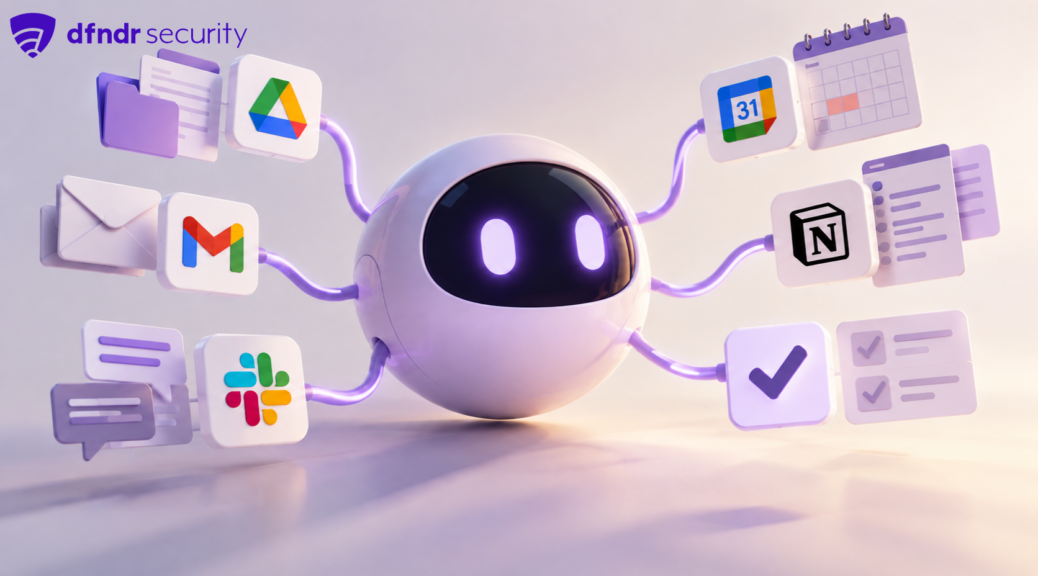
A connected app lets a dot work with information within the permissions you have granted. According to OpenAI’s privacy and safety FAQ, plugin permissions are shared across dots, ChatGPT, ChatGPT Work, and Codex. A connection you already set up may therefore be available to your dot within its existing permission scope. Check your connections before giving the dot a new job.
One distinction matters here. A dot can look through permitted connected information in the background without a fresh request from you. OpenAI calls this proactive research. Its research tools can read and make private notes, but they cannot directly send messages, change content through plugins, or control a browser or computer. Work you specifically assign can involve other actions, subject to the app’s permissions, your rules, and OpenAI’s checks.
Instead of asking whether the dot has access to “my apps” as a group, look at each connection separately. A calendar, a storage service, and a messaging app expose different information. Starting with one app for one small task makes the result easier to judge.
Related reading: What not to share with an AI assistant
When does a dot need your approval?
Connecting an app does not give a dot blanket permission to do whatever it wants. OpenAI says dots follow action rules and safety checks. Some actions may proceed within the boundaries you set, others require approval, and especially sensitive steps stay with you. Changing a password, for example, requires you to take over. Custom Rules let you add boundaries for supported actions.
Approval also depends on what you asked for. You may approve a specific action in advance, with clear conditions, but that does not authorize every similar action later. OpenAI’s FAQ on actions and approvals makes that limit explicit.
Suppose you ask a dot to gather information for a project and prepare a draft plan. You can read the plan, correct a detail, and then decide whether a proposed next step should happen in a connected app. Review work that could affect someone else, change an important file, or create a commitment. OpenAI notes that dots can make mistakes even when rules are in place.
Who can use dots in the United States?
OpenAI’s setup guide says dots are rolling out to ChatGPT Pro users outside the European Economic Area, Switzerland, and the UK, and to Business Premium users in supported ChatGPT regions. Enterprise access begins as a beta that a workspace administrator must enable. The US falls within the described Pro rollout, but access is gradual and may take several days to reach an individual account.
You create a dot in the ChatGPT desktop app or on the desktop website. After setup, you can talk to it in the mobile app when mobile access is available for your account. The Help Center says you cannot currently create a dot on a phone or use it on the mobile website. If you do not see the option yet, the account rollout may still be underway.
OpenAI also describes a limited texting beta for some US Pro users. That is a separate feature with its own availability. You do not need texting to understand or use the app connections discussed here.
How should you choose an app connection?
Start with the job, then choose the access it needs. If you only want a summary from one file service, there is little reason to connect a calendar at the same time. Open ChatGPT’s plugin controls, review the available apps, and read the permissions shown for each connection. The getting-started instructions also explain where to review Custom Rules and activity; menus may differ by device and account rollout.
For a first try, keep the process simple:
- Pick a small task whose result you can check yourself.
- Connect only the app needed for that task and review its access scope.
- Decide which supported actions should wait for your approval.
- Look at the activity and the finished work before assigning more.
You can disconnect an app to stop new access through that connection. Disconnecting does not erase information the dot has already added to its context. OpenAI’s privacy FAQ says deleting the dot removes its own context, while files and conversations created elsewhere are stored separately. That difference is useful to know before connecting a service you use every day.
Dots offer a new way to manage work that crosses several apps. Begin with a task you actually want help with, check the permissions, and see whether the result saves you effort. If the feature is not on your account yet, consult OpenAI’s Help Center for the current rollout status before looking for setup controls that may not have appeared.
Keep reading
- How to assess an Android app permission
- How to review camera, microphone, and location access on Android
- What remains after you uninstall an app