


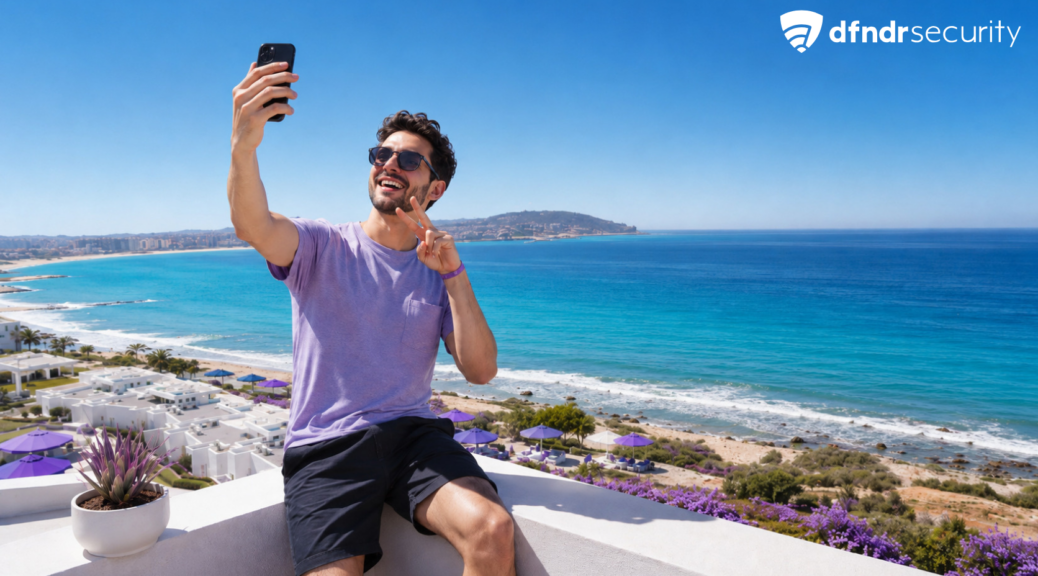
How to Share Photos on Android Without Revealing Your Location
You take a photo at home, capture a moment with your family, and send it to a group chat. It seems harmless, but the file may contain information […]
You take a photo at home, capture a moment with your family, and send it to a group chat. It seems harmless, but the file may contain information about the exact location where it was created.
Learning how to share photos on Android without revealing your location can help protect your address, routine, and the places you visit. This matters especially when posting images on social media, online marketplace listings, or in groups that include people you do not know.
What a photo can reveal about your location
When your camera takes a picture, it may add metadata to the file. This technical information can include the phone model, date, time, and GPS coordinates.
Phone location data can reveal personal habits or connect you to a specific place. The Federal Trade Commission identifies precise geolocation as sensitive personal information, since it can expose a person’s movements and routines.
Google also explains that a photo may have a location saved by the camera, added manually, or estimated by Google Photos.
How to share photos on Android without revealing your location
Start by checking whether the image contains location information. Open the picture in Google Photos, swipe up, or tap the information menu. Look for a map, place name, or GPS coordinates.
When a location has been added or estimated by Google Photos, you may be able to edit or remove it. Google provides the complete process in its official guide to finding, editing, and removing photo locations.
Before sharing an album, open its sharing options and check whether location details are included. Google lets you control location sharing for albums, links, and conversations. However, downloaded files sent through other apps may still contain location data originally saved by the camera.
Read more: What Happens When You Tap “Allow” on an Android App?
How to stop new photos from saving your location
Open your camera app and go to its settings. Look for options such as “Save location,” “Location tags,” or “Geo-tag photos,” then turn the setting off. The wording may vary depending on your phone’s manufacturer.
You should also review the camera’s permissions. Go to Settings > Apps > Camera > Permissions > Location. Google’s official Android app permissions guide explains that location access may be allowed while using the app, requested each time, or blocked completely.
Before sending personal images, an extra layer of mobile protection can help you identify risky settings and suspicious apps. dfndr security can be part of this preventive review, along with manually checking permissions and the information stored in each photo.
Does removing location data eliminate every risk?
Not necessarily. Even without GPS coordinates, a photo may show a street sign, storefront, school uniform, employee badge, house number, or nearby business.
Google warns that other people may still guess the location by recognizing visible landmarks. The company also explains how Google Photos protects location data and what users can control before sharing.
Before posting or sending a picture, zoom in and inspect the background. Cropping the image or covering identifying details can be just as important as removing the metadata.
How to protect your photos before sharing
Run through this three-step check:
- Confirm whether the image contains a location or GPS coordinates.
- Look for addresses, signs, documents, and identifying details in reflections.
- Check who will receive the file and whether it will be posted publicly.
Avoid sharing photos of your home in real time or images that reveal the routines of children and family members. For more guidance on controlling access to personal information, review the Cybersecurity and Infrastructure Security Agency’s recommendations for managing app permissions.
Frequently asked questions
Does every photo taken on Android record your location?
No. It depends on the camera’s location permission and the app’s settings. The behavior may also vary between phone manufacturers.
Do SMS or iMessage remove location data from photos?
Metadata handling may change depending on the file format and how the image is sent. Do not rely on the messaging app alone. Review or remove the location before sharing.
Does a screenshot keep the original photo’s location?
Usually, a screenshot creates a new file and does not copy the original image’s GPS coordinates. However, details visible on the screen may still reveal the location.
Read more on the PSafe Blog
A selection of recent posts published in June and July:
- Your Phone Knows Where You’ve Been. Here’s Why That Matters More Than Ever
- Can Your Phone Be Tracked in Airplane Mode? Myth vs. Fact