


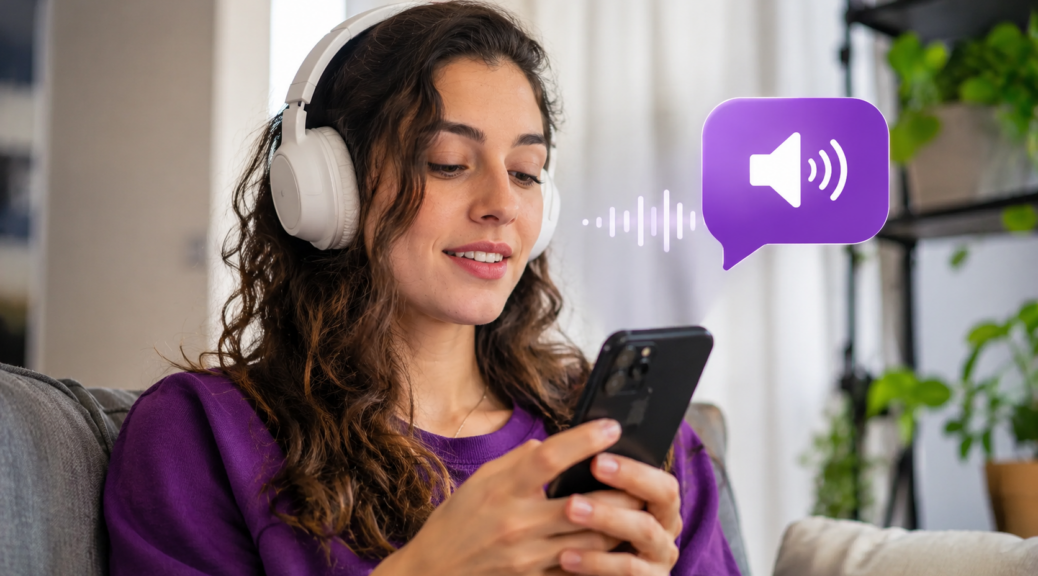
Your Phone Can Read Text Aloud: Here’s How to Turn It On
Did you know your smartphone can read articles, messages, and other text aloud? Whether you’re having trouble reading small letters or simply prefer listening to content, built-in accessibility […]
Did you know your smartphone can read articles, messages, and other text aloud?
Whether you’re having trouble reading small letters or simply prefer listening to content, built-in accessibility features can make your phone easier to use.
Both Android and iPhone offer tools that convert on-screen text into spoken audio.
Here’s how to find these features, what they do, and how to use them safely.
How Does Text-to-Speech Work on Smartphones?
Text-to-speech technology converts written content into spoken words.
Depending on the feature, you can select a passage, listen to an article, or hear descriptions of elements displayed on the screen.
These tools are especially valuable for people with visual impairments or reading difficulties.
They can also be convenient for anyone who prefers listening to longer content.
However, the exact options depend on your device, operating system, and the app you’re using.
How to Make an Android Phone Read Text Aloud
Android offers an accessibility feature called Select to Speak.
To enable it:
- Open Settings.
- Select Accessibility.
- Find Select to Speak.
- Turn on its shortcut.
- Open a supported screen and use the shortcut to start reading.
Depending on the content, you may be able to select individual elements or have the device read larger sections.
Google’s official Select to Speak instructions explain how to activate the feature and control playback.
Menu names and shortcuts may vary depending on the Android version and manufacturer.
How to Make an iPhone Read the Screen
iPhones also include built-in features for reading text aloud.
To get started:
- Open Settings.
- Tap Accessibility.
- Find Read & Speak or the corresponding spoken-content settings.
- Enable the option for reading selected text or the entire screen.
- Open a text-based app and use the supported gesture or command.
You can also customize the speaking rate and choose from available voices.
Apple’s official guide to spoken content on iPhone explains the available reading options.
You don’t need to turn on VoiceOver just to hear selected text.
What’s the Difference Between Text-to-Speech and a Screen Reader?
These tools may sound similar, but they serve different purposes.
Text-to-speech features focus on reading written content aloud.
Screen readers provide a more comprehensive way to navigate a device.
For example, Android’s TalkBack and Apple’s VoiceOver can announce buttons, menus, notifications, and other interface elements.
They also support gestures and interactions designed for users who cannot easily rely on visual information.
If your main goal is listening to an article, a basic reading feature may be enough.
If you need assistance navigating the entire interface, a screen reader may be more appropriate.
Can You Make Text Larger and Easier to Read?
Yes. Smartphones also offer several visual accessibility settings.
You can increase font sizes, magnify portions of the screen, adjust contrast, or modify display colors.
On Android, look for these options under Accessibility or Display settings.
On iPhone, open Settings > Accessibility to explore available visual adjustments.
Combining larger text with spoken reading can make longer articles and messages more comfortable to follow.
Try different settings until you find a combination that works for you.
Are Accessibility Features Safe to Use?
Built-in accessibility features can be extremely helpful.
However, you should be careful when installing third-party apps that request broad accessibility permissions.
Some apps may ask for permission to observe screen content or interact with other applications.
Depending on the access granted, this could expose messages, notifications, or other sensitive information.
Before enabling these permissions, review the developer and consider whether the requested access is necessary.
The PSafe blog explains what happens when you tap Allow on an Android app and why reviewing permissions matters.
Another consideration is privacy in public spaces.
If your phone reads a private message aloud, nearby people may be able to hear it.
Use headphones or lower the volume when listening to confidential information.
How to Get More From Your Phone’s Reading Features
Start by opening an article and testing the reading options available on your device.
Adjust the speaking rate, experiment with shortcuts, and check which apps support text selection.
If the audio is too fast, slow it down. If text is difficult to see, combine spoken reading with larger fonts.
You may discover that features already installed on your phone make everyday tasks easier.
A few accessibility adjustments can make reading, browsing, and navigating your smartphone more comfortable.
Keep reading
- How to See Which Apps Use Your Camera, Microphone, and Location
- What Happens to Your Data After You Close an App?
- How to Check If a Link Is Safe