

How to Check If a Link Is Safe: How dfndr Scans Suspicious URLs
Have you ever received a message and wondered how to check if a link is safe? It might be a package delivery notice, a limited-time offer, or an […]
Have you ever received a message and wondered how to check if a link is safe? It might be a package delivery notice, a limited-time offer, or an unexpected charge. The message looks convincing, but something about the URL feels off.
A suspicious link can send you to a fake website, trigger a malicious download, or open a form designed to steal passwords and financial information. That is why checking a URL before clicking is safer than opening the page just to see what is there.
Why a Malicious Link Can Look Legitimate
Scammers can copy logos, colors, wording, and even the layout of real login pages. They may also register lookalike domains by changing one letter, adding extra words, or using subdomains to hide the real website address.
The padlock icon in your browser does not prove that the company behind the page is legitimate. It only means the connection is encrypted. A fake website can still use a valid security certificate.
Google Chrome’s security guidance warns that dangerous websites may use addresses that look almost identical to familiar sites.
How dfndr Scans Suspicious Links
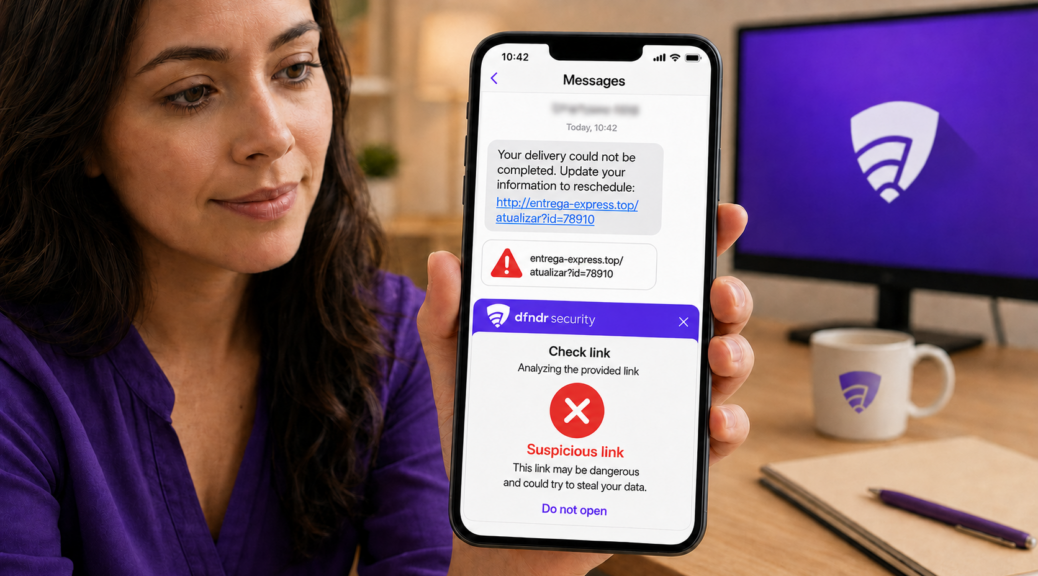
The Dangerous Link Detector lets you enter a URL and check for possible signs of a threat before visiting the page. The scan can help identify addresses connected to dangerous websites, fraud attempts, and other risks already recognized by security systems.
This type of technology looks for patterns that may suggest malicious behavior. A URL that closely imitates a well-known company’s domain, for example, deserves extra scrutiny, especially when it arrives in a message demanding immediate action.
Before opening a URL received through SMS, iMessage, or email, the Dangerous Link Detector in dfndr security can provide an extra layer of verification. If the system detects signs of a threat, it may warn you before you continue.
No tool can replace your judgment entirely. Always combine the scan result with a careful review of the domain, the sender, and the reason the link was sent.
Read more: Could You Spot a Fake Login Page in 5 Seconds? Take the Phishing Test
How to Check a Link Without Clicking
Start by reading the full URL. Focus on the actual registered domain before the first slash.
In chase.account-alert.com/login, for example, the domain belongs to account-alert.com, not Chase.
Before opening the link:
- Compare the URL with the company’s official website.
- Look for switched letters, numbers, or extra words.
- Be cautious with shortened links that hide the destination.
- Confirm the charge or offer through the official app.
- Never enter passwords, verification codes, or banking details.
- Run the address through a URL checker.
Google Safe Browsing also helps browsers and other services recognize dangerous pages and display security warnings.
Warning Signs of a Malicious Link
One warning sign alone does not always confirm a scam. The risk increases when several appear together:
- pressure to click, pay, or update information immediately;
- a domain that does not match the official website;
- misspellings in the company name;
- an offer that sounds too good to be true;
- a request for a password or verification code;
- an unexpected download;
- a message that arrives without context;
- a threat that your account will be locked right away.
The Cybersecurity and Infrastructure Security Agency warns that phishing messages often rely on urgent language, unexpected requests, and suspicious links to push people into acting before they verify the message.
What to Do If You Clicked a Suspicious Link
If the page opened but you did not enter any information, close it and do not download anything. Check whether any unfamiliar app or file was installed without your permission.
If you entered a password, change it immediately through the official app or website. If you use the same password on other accounts, update those passwords too.
The Federal Trade Commission’s phishing guidance recommends taking immediate action if a scammer may have received your password, credit card number, or bank account information. You can also use IdentityTheft.gov for recovery steps based on the information that was exposed.
Save the message, sender information, timestamps, receipts, and screenshots. These records may help your bank, credit card company, or investigators review the incident.
How to Protect Yourself From Malicious Links
When you receive an unexpected charge or account notice, do not use the link in the message. Open the official app or type the website address directly into your browser.
Keep your phone and apps updated, turn on two-factor authentication, and avoid reusing the same password across multiple services. Links sent by people you know should still be verified because compromised accounts can be used to spread scams.
Frequently Asked Questions
Is a Website With HTTPS Always Safe?
No. HTTPS protects information while it travels between your device and the website, but it does not confirm that the page belongs to the company it claims to represent.
Is a Shortened Link Dangerous?
Not necessarily. The problem is that shortened URLs hide the final destination. Check the full address before opening one.
How Can You Tell If a Website Is Legitimate?
Review the domain, find the company’s official contact channel, and be suspicious of urgent requests for payments, passwords, or verification codes.
Can dfndr Confirm That a Charge Is Legitimate?
No. The tool analyzes the URL for possible threats. You still need to confirm the charge directly with the company.
Conclusion
Knowing how to check if a link is safe means paying attention to the address, the context, and the message itself. Do not treat the padlock icon as proof that a website is legitimate, and never enter information when you cannot verify where the page came from.
Checking the URL before clicking, using official company channels, and scanning suspicious links can help prevent the theft of passwords, personal information, and financial data.
Read More on the PSafe Blog
- Why Updating Android Helps Protect Your Phone, Even When Nothing Looks Different
- Your Phone Knows Where You’ve Been. Here’s Why That Matters More Than Ever
- Does Your Phone Listen to You for Ads? Myth vs. Reality