


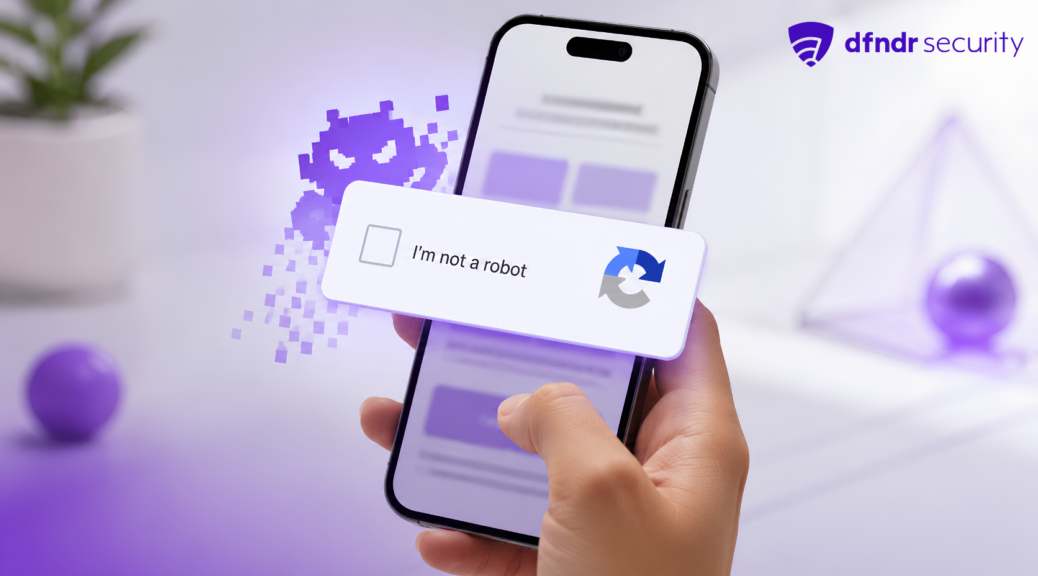
Fake CAPTCHA Is Installing Malware on Your Phone — How to Spot It Before You Tap
CAPTCHAs are supposed to feel routine. You click a box, type a few letters, or select every image with a traffic light to prove you are not a […]
CAPTCHAs are supposed to feel routine. You click a box, type a few letters, or select every image with a traffic light to prove you are not a bot.
That routine is exactly what scammers are exploiting.
The FTC has warned about fake CAPTCHA pages that look like normal security checks but are designed to trick people into installing malware on their own devices. Instead of asking for a simple verification, the page may tell you to press keyboard shortcuts, paste commands, approve a download, or follow unusual steps before continuing.
That is the red flag: a real CAPTCHA checks whether you are human. It does not need you to control your device manually.
How the fake CAPTCHA scam works
The scam usually starts while you are browsing a website, opening a link, or landing on a page that suddenly shows a “security verification” prompt.
At first glance, it may look harmless. The screen might use familiar language like “I’m not a robot,” “verify you are human,” or “complete this security check.” That familiar design lowers your guard.
But the next step is what makes the scam dangerous. According to the FTC, some fake CAPTCHA pages instruct users to press commands such as “Windows + R,” then “Ctrl + V,” and then “Enter.” Those steps can paste and run a hidden command that installs malware.
Security researchers have also reported fake CAPTCHA pages that hijack the clipboard and push users into running malicious commands, often leading to information-stealing malware.
Once installed, that malware may try to steal login details, browser data, passwords, online shopping credentials, email access, banking information, or other sensitive data stored on the device.
Why this scam feels believable
Fake CAPTCHA scams work because CAPTCHAs are already part of everyday internet life. People see them when logging into accounts, buying something online, creating profiles, or visiting sites with extra security checks.
That familiarity creates trust.
Scammers copy the look of a normal verification screen and turn a common habit into a trap. The page may feel routine, but the instructions are not.
If a verification screen asks you to open a command window, paste something, install an app, approve a download, or change settings on your device, stop immediately.
A real CAPTCHA may ask you to select images, check a box, type characters, or solve a simple challenge. It does not ask you to run shortcuts, paste commands, or install software to prove you are human.
The biggest warning signs of a fake CAPTCHA
The clearest warning sign is any CAPTCHA that asks you to do more than complete a simple verification task.
Be especially cautious if the page asks you to:
- press keyboard shortcuts;
- open Run, Terminal, PowerShell, or Command Prompt;
- paste a command;
- approve a download;
- install an app or extension;
- disable security settings;
- act quickly to avoid losing access.
Another warning sign is a CAPTCHA that appears unexpectedly on a site you do not trust, especially after clicking an ad, a shortened link, or a suspicious message.
If a download starts after you interact with the page, do not ignore it. That may mean the scam has already moved from a fake screen to a real threat on your device.
What to do if you think you clicked one
If you believe a fake CAPTCHA caused something to download, install, or run, act quickly.
First, disconnect the device from the internet. This can help limit what scammers may access while you investigate.
Next, run a security scan to look for malware, suspicious apps, or unwanted files. The FTC also recommends changing passwords and enabling two-factor authentication from a different device in case the malware already exposed your accounts.
At this point, it is worth adding a protection layer before using the device normally again. dfndr security’s can help check your phone for suspicious apps and potential malware, reducing the risk that a hidden threat keeps exposing your accounts, passwords, or personal data.
After that, focus on your most important accounts first: email, banking apps, online shopping, social media, and any service that stores payment information.
How to protect yourself before the next fake CAPTCHA
The best defense is slowing down before you tap, click, or follow instructions. CAPTCHA screens are common, but they should never ask you to control your device manually.
If a page tells you to paste commands, approve a download, install something, or run a shortcut to prove you are human, leave the page.
Also avoid returning to the same link. Open the official website by typing the address directly into your browser, especially if the CAPTCHA appeared after clicking a message, ad, or unfamiliar page.
Keep your phone, browser, and apps updated. Updates often include security fixes that make it harder for malware to take advantage of known weaknesses.
Fake CAPTCHA scams rely on speed and habit. The more you pause before you tap, the harder it becomes for scammers to turn a routine security check into a stolen account.