


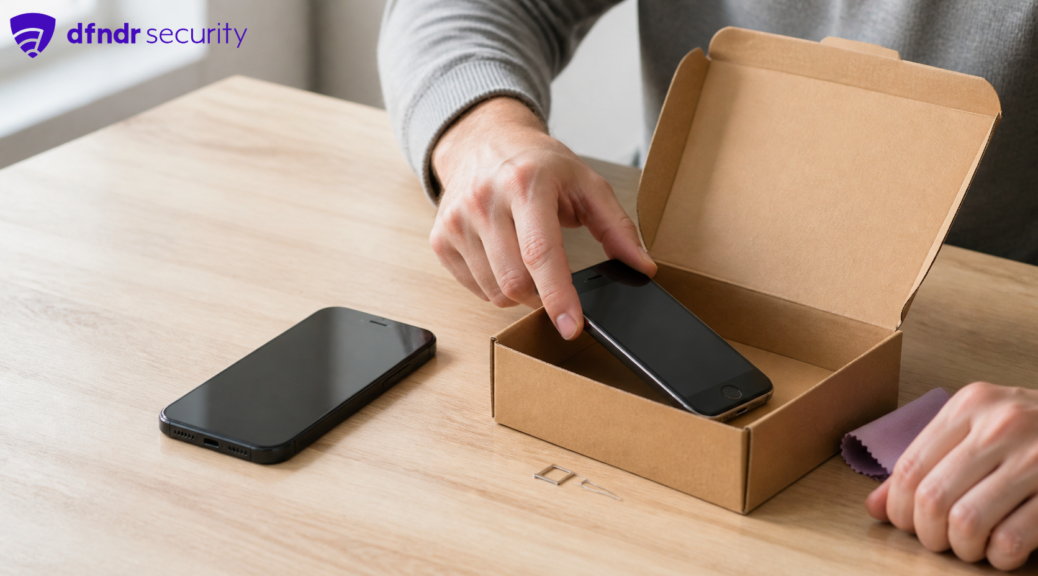
Does a Factory Reset Delete Everything? What to Do Before Selling Your Phone
Selling your phone doesn’t have to be a hassle. Here are several steps you should take before you sell your smartphone online or to a friend.
A factory reset deletes apps, accounts, settings, and files stored locally on your phone. It does not automatically erase copies already saved in Google Photos, your Google Account, iCloud, or another cloud service. A physical SIM, eSIM, and microSD card may also require separate action.
That distinction matters when you sell, trade in, donate, or recycle a phone. Reset too early and you may lose access to messages, authenticator codes, or data that never reached the new device. Skip account removal and the next owner may receive a phone blocked by Apple Activation Lock or Android device protection. This checklist puts backup, account removal, erasure, and final verification in the right order.
Does a factory reset delete everything?
A factory reset erases the phone’s internal storage and returns its software to the initial setup state. It does not, by itself, delete information held in your online accounts.
Here is the practical difference:
- Erased from the phone: installed apps, signed-in accounts, preferences, messages, and files stored only in internal memory.
- May remain in the cloud: synced photos, contacts, documents, and account backups.
- May require its own transfer or removal: messaging apps, authenticator apps, banking apps, wearables, digital wallets, physical SIM, eSIM, and microSD storage.
“Factory reset” is also different from “restore a backup.” A factory reset clears a device. Restoring a backup brings a saved copy to a configured phone. Verify the transfer before erasing the old device.
Do not manually delete synced photos or contacts as a substitute for a reset. Apple warns that deleting items while signed in to iCloud can remove them from iCloud and your other connected devices. Its official pre-sale instructions recommend transferring or backing up first, then erasing the device through the system controls.
Read also: Does Deleting Photos From Your Phone Delete Them From Google Photos? Myth vs. Fact
What to do before selling or trading in your phone
Complete these steps before choosing Factory reset or Erase All Content and Settings. Menu names can differ by device and software version.
- Verify the backup or transfer. Open important photos, contacts, documents, and conversations on the new phone or in the service where they were saved. A completed-backup message is useful, but checking the result is better.
- Move access tied to the old phone. Review messaging, authenticator, banking, and workplace apps. Some services have a separate migration or reactivation process.
- Unpair accessories and remove wallet items. Follow manufacturer instructions for watches, connected accessories, and cards stored in a digital wallet.
- Remove accounts and activation locks. On Android, remove every Google Account and any manufacturer account. On iPhone, follow Apple’s process for your Apple Account, Find My, and Activation Lock.
- Handle cellular service and removable storage. Take out the physical SIM and microSD card. Decide how to transfer or delete the eSIM based on the phone, carrier, and trade-in instructions.
- Reset from Settings. Use the normal, unlocked system workflow instead of recovery mode whenever possible.
- Stop at the welcome screen. Do not set the device up again. Make sure it does not ask for the previous owner’s credentials.
The reset belongs at the end of the process. Do not hand over the phone until your backup is confirmed, your account locks are removed, and the device can begin setup without your credentials.
How to prepare an Android phone
Google states that a factory reset erases data from the phone, while information backed up to your Google Account can be restored later. Because Android menus and additional features vary by manufacturer, use the device maker’s official help for the exact path.
Remove all Google Accounts before resetting a phone for someone else. Android device protection, often discussed as Factory Reset Protection or FRP, can require a Google Account previously used on the device during setup. A reset performed through recovery buttons does not necessarily solve an ownership lock and may leave the buyer unable to activate the phone.
If the device has a manufacturer account, such as a Samsung Account, remove that too. Take out the physical SIM and microSD card. For eSIM, review the device and carrier instructions rather than assuming the general factory reset handles the line exactly as intended.
Run the reset from Settings, then wait for the setup welcome screen. If the phone requests a Google Account that was used before the reset, the account-removal or device-protection step was not completed as expected.
How to erase an iPhone for a new owner
Apple recommends transferring or backing up your information, unpairing an Apple Watch when applicable, and using Erase All Content and Settings. Its current sell-or-trade guidance says the process removes local content and Apple Pay cards and turns off services on the device. It does not delete content stored in iCloud.
During erasure, the iPhone may ask whether to erase the eSIM. When the phone is changing owners, follow the on-screen option and confirm beforehand how your carrier will activate service on the replacement phone. If you are moving from iPhone to Android, also follow Apple’s official guidance for turning off iMessage.
When the erase process finishes, Find My and Activation Lock should be off. Stop at the “Hello” screen. Do not sign back in or complete setup for the buyer.
How to verify the phone is ready to hand over
Before shipping the device or completing the trade-in, check that:
- it starts at the welcome or setup screen;
- your photos, messages, notifications, and accounts are no longer visible;
- the physical SIM and memory card have been removed;
- setup does not request your Google Account or Apple Account credentials;
- the new phone contains the data and access you chose to preserve.
If the old credentials are still required, do not hand over the phone. Use the manufacturer’s official help center to review account removal and the corresponding activation lock. This protects your information and prevents the buyer from receiving a device they cannot use.
What to do if you already handed over the phone
Use the official Google Account or Apple Account tools to review connected devices and available location or remote-erasure controls. Review important account sessions through the service’s official app or website. Remote actions depend on the old phone still being associated with the account and connecting to the internet, so they are not a guaranteed substitute for preparing the phone in person.
Contact the store, marketplace, carrier, or recipient through the official channel used for the transaction. If your cellular line remained on the device, use the carrier’s official app, website, help center, or account portal to review the physical SIM or eSIM status.
Keep reading
- How to See Which Devices Are Signed In to Your Google Account
- Is Your Phone Ready for an Emergency? Set Up Location, Backup, and Contacts in 10 Minutes
- Does Uninstalling an App Delete Your Account and Data? Myth vs. Fact
- Google Drive Stopped Photos Backup: What Changed
Sources
- Apple — What to do before you sell, give away, or trade in your iPhone or iPad
- Google Android — Reset your Android device to factory settings
- Google Android — Back up or restore data on your Android device
- Google Store — Send your trade-in device
- FTC — How To Remove Your Personal Information Before You Get Rid of Your Phone